
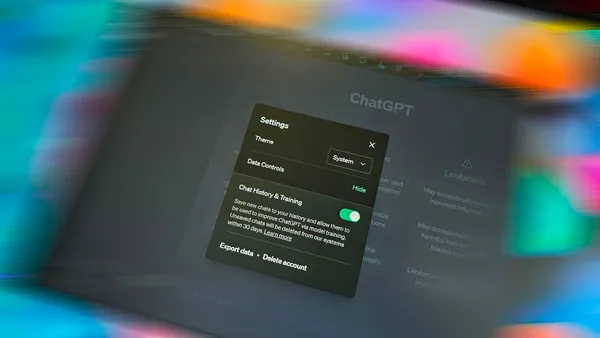
ChatGPT works best when it knows who you are, what you care about, and how you like your answers. With a few simple settings, you can train it to act more like a personal assistant who understands your preferences, instead of a generic chatbot. This guide walks you through that setup step by step.
What This Is
A detailed, beginner-friendly walkthrough that shows you how to personalize ChatGPT using Custom Instructions, data and history settings, default tone and format preferences, and a few smart habits so it feels tailored to you every time you open it. I’ll also point out where you might place screenshots or images in your Learning Center article.
Step-by-Step: How to Personalize and Set Up ChatGPT
- Sign In and Open a New Chat
• Go to chat.openai.com or open the ChatGPT mobile app.
• Sign in or create a free account.
• Click or tap New Chat so you’re starting from a clean conversation. - Find Custom Instructions (Your Built-In Personalization Panel)
Custom Instructions tell ChatGPT how to behave every time it answers you.
• On desktop: Click your name or profile icon in the lower-left corner, then select Custom Instructions.
• On mobile: Tap the ☰ menu or your profile icon, then tap Custom Instructions.
You’ll see two main boxes (sometimes labeled slightly differently, but they boil down to):
• “What would you like ChatGPT to know about you to provide better responses?”
• “How would you like ChatGPT to respond?” - Fill In: “What Should ChatGPT Know About You?”
This is where you give ChatGPT durable context about who you are and what you care about. Think of it as your “about me” for the AI.
Useful things to include:
• Who you are (role, stage of life, interests)
• What you usually work on or care about
• Any constraints (health, time, money, energy) that affect decisions
• What “success” looks like when you ask for help
Example you can adapt:
“I’m a beginner with A.I. and I mostly use ChatGPT for planning, writing, and learning. I appreciate clear, simple explanations with minimal jargon. I prefer realistic, practical suggestions I can actually do in daily life.” - Fill In: “How Should ChatGPT Respond?”
This box lets you shape the tone, style, and format of every answer.
You can specify:
• Tone (friendly, professional, calm, straightforward)
• Length (short summaries vs. detailed explanations)
• Format (bullet points, numbered steps, checklists)
• What you don’t want (too much fluff, heavy jargon, etc.)
Example you can adapt:
“Use a friendly, encouraging tone, but be honest and direct. Prefer bullet points and step-by-step lists over long paragraphs. Explain concepts in simple language first, then add detail if needed. Always suggest 1–2 practical actions I can take.” - Control Your Data and Chat History
Next, check how your chats and data are being handled.
• Look for Settings (gear icon or in your profile menu).
• Find Data Controls or Chat History & Training.
Key options to review:
• Whether chat history is saved and used to improve models.
• Whether you want to keep transcripts for your own reference.
• Any export/download options if you want a backup of your conversations.
If privacy is a concern, you can turn off history or training, but remember: turning off history may also limit how well ChatGPT remembers context across chats. - Choose Your Default Model and Mode (If Available)
Depending on your plan, you may see options like different GPT models, voice mode, or additional tools.
• On desktop/mobile, look for a model selector at the top of the chat.
• Choose the model you want to use by default for everyday questions (usually the latest “GPT” option).
If voice or other tools are available, you can:
• Enable voice conversations if you prefer speaking over typing.
• Explore image or document upload tools so you can show, not just tell. - Set Up a “Starter Prompt” You Can Reuse
You can make ChatGPT even more consistent by starting important conversations with a short “starter prompt” that reminds it how to behave.
Example starter prompt:
“For this conversation, act as my practical assistant. Ask clarifying questions if my request is vague. Prioritize clear, realistic suggestions that someone with limited time and energy can actually follow.”
Save this somewhere (notes app, document, pinned note) so you can paste it anytime you start a new chat for serious work. - Test Your Personalization With a Real Task
Now that your instructions and settings are in place, test them with something small but real:
• “Rewrite this email in a friendly, clear tone:” + paste email.
• “Summarize this article in 5 bullet points:” + paste article.
• “Help me plan a simple weekly routine for exercise and meals.”
When the answer comes back, ask yourself:
• Does the tone feel right?
• Are the explanations clear and at the right level?
• Is the format (bullets vs. paragraphs) what you prefer?
If not, tweak your Custom Instructions and try again. - Refine Your Instructions Over Time
Treat Custom Instructions as a living document. Every time you think, “I wish ChatGPT would ___,” that’s a clue to update your settings.
Examples of refinements:
• “Please avoid overly technical language unless I ask for it.”
• “Include 1–2 examples whenever you explain something new.”
• “Limit most answers to 3–7 bullet points unless I request more detail.”
Small adjustments can make a huge difference in day-to-day use. - Create a Second Profile Style (Optional but Powerful)
You can also use Custom Instructions or starter prompts to create “modes” for different kinds of work:
• A “teacher mode” for learning.
• A “business mode” for professional writing.
• A “brainstorm mode” for ideas and creativity.
Example “teacher mode” starter prompt:
“Act like a patient tutor. Start with a simple explanation, then check my understanding with a quick question. Only move to more advanced details after I answer.”
Key Takeaways
• Custom Instructions are the main way to personalize how ChatGPT thinks about you and responds.
• Sharing who you are, what you care about, and how you like answers dramatically improves results.
• Data and history settings let you balance privacy with convenience.
• Starter prompts and “modes” help ChatGPT stay consistent for different jobs.
• Your ChatGPT setup should evolve—update it as your needs change.
Join our free newsletter today. Better yet, become a member to gain access to more than 200 valuable prompts and pro tips, engage with the community, and support independent publishers like us!