
Google Gemini becomes dramatically more useful once you personalize it. When Gemini knows who you are, what you care about, and how you like information presented, it gives clearer, faster, more relevant answers. This guide walks beginners through setting up and personalizing Gemini step by step.
What This Is
A detailed walkthrough showing how to personalize Google Gemini using settings, preferences, tone/style choices, upload tools, conversational guidance, and smart habits that help Gemini respond the way you want every time.
How to Personalize and Set Up Google Gemini (Step-by-Step)
- Open Gemini on Web or Mobile
• Web: Visit gemini.google.com and sign in.
• Mobile: Install the Gemini app from the App Store or Google Play, then sign in.
Tip: If you use Chrome, you can start Gemini by typing @gemini in the address bar. - Start a New Chat for Clean Personalization
Tap New Chat so your setup isn’t influenced by older conversations.
Then say: “I want to personalize your responses. Ask me anything you need to know.”
Gemini will begin gathering preferences automatically. - Tell Gemini About Yourself (Who You Are + Your Goals)
This is the foundation of personalization. Give Gemini basic context so it can tailor explanations and suggestions.
Examples:
• “I am a beginner with A.I., so explain things simply.”
• “I prefer short answers unless I ask for detail.”
• “I like step-by-step instructions for anything technical.”
• “I’m planning to use Gemini mostly for planning, learning, and writing.”
The more you provide upfront, the better Gemini adapts. - Set Tone & Style Preferences (How You Want Gemini to Respond)
You can explicitly tell Gemini:
• “Respond in a friendly, simple, encouraging tone.”
• “Use bullet points instead of long paragraphs.”
• “Start every answer with a short summary.”
• “Avoid jargon unless I request it.”
• “Always ask clarifying questions if my request is vague.”
Gemini will follow these defaults until you change them. - Use the Upload Tools to Teach Your Preferences
Tap the paperclip / plus icon to unlock personalization through content:
• Upload writing samples so Gemini matches your tone.
• Upload documents, notes, or summaries so Gemini learns your work style.
• Upload a photo of something you need help with (bills, forms, recipes, products).
• Use camera mode to show Gemini objects, instructions, or problems in real time.
This gives Gemini concrete examples of how you think and what you need. - Explain Your Daily Use Cases
Tell Gemini what you’ll use it for most often.
Examples:
• “I want help with rewriting emails.”
• “I want concise summaries of long articles.”
• “I want you to help me plan meals and shopping lists.”
• “I want simple explanations of financial or technical topics.”
Gemini uses these patterns to shape how it responds in future chats. - Create a Default Behavior Prompt (Optional but Powerful)
Copy/paste this anytime you start a serious chat:
“For this conversation, act as a practical assistant. Prioritize clarity, bullet points, and simple explanations. Ask clarifying questions when needed and offer 1–2 suggested next steps.”
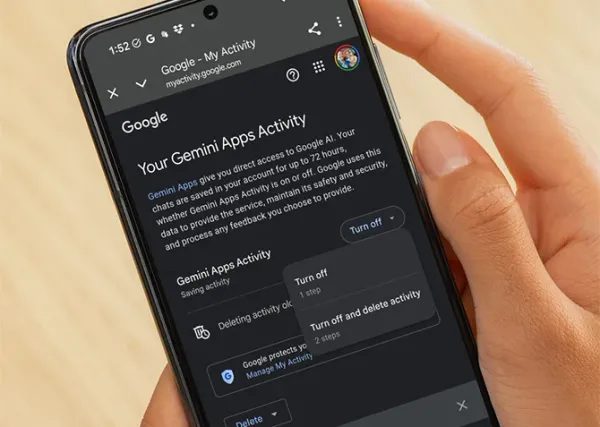
This ensures consistency even when settings shift over time. - Review Gemini’s Activity & Data Settings
In the mobile app or web interface, go to Settings → Data & Privacy.
Check:
• Whether Gemini saves your history
• Whether it uses your data to improve future responses
• Whether your assistant activity is synced across devices
Beginners often skip this, but these settings affect how well Gemini remembers your patterns. - Test Your Personalization With a Real Task
Try one of these as a test:
• “Rewrite this email in my preferred tone:” + paste text
• “Summarize this in 5 bullets:” + paste article
• “Create a 3-day plan for me based on my preferences above”
Evaluate the result. If something feels “off,” refine your instructions and repeat. - Refine Over Time (Gemini Learns Through Usage)
As you use Gemini, update your preferences anytime you think:
“I wish it would ___ more often.”
Add it. The system adapts.
Example refinements:
• “Give examples when explaining complex topics.”
• “Keep most answers under 6 bullet points.”
• “Remind me of my preferences if I forget to include them.”
Key Takeaways
• Gemini becomes far more useful when it knows who you are and how you like information.
• Tone, style, and structure preferences dramatically improve every response.
• Uploads (documents, photos, writing samples) help Gemini learn your patterns.
• A default “starter prompt” ensures consistent, high-quality results.
• Personalization improves over time as you refine your preferences.
Join our free newsletter today. Better yet, become a member to gain access to more than 200 valuable prompts and pro tips, engage with the community, and support independent publishers like us!