Microsoft Copilot becomes far more powerful once it understands who you are, what you’re trying to accomplish, and how you prefer information to be delivered. Whether you’re using the free Copilot, Copilot in Windows, or Copilot inside Microsoft 365 apps, you can personalize it so it behaves more like a real assistant—not just a chatbot.
What This Is
A step-by-step beginner’s guide that walks you through personalizing Microsoft Copilot using preferences, tone settings, file uploads, Microsoft 365 integrations, and smart starter prompts so Copilot responds the way you want across all your devices.
How to Personalize and Set Up Microsoft Copilot (Step-by-Step)
- Open Copilot on Your Device
• Web: Visit copilot.microsoft.com and sign in.
• Windows: Use the Copilot sidebar or Copilot app.
• Mobile: Install the Copilot app from the App Store or Google Play.
• Microsoft 365: Open Word, Excel, Outlook, or PowerPoint and look for the Copilot icon in the ribbon.
Starting from a clean sign-in ensures Copilot begins learning your preferences consistently across devices. - Start a New Chat and Tell Copilot You Want to Personalize It
Begin by typing:
“I’d like to personalize how you respond. Ask me anything you need to know.”
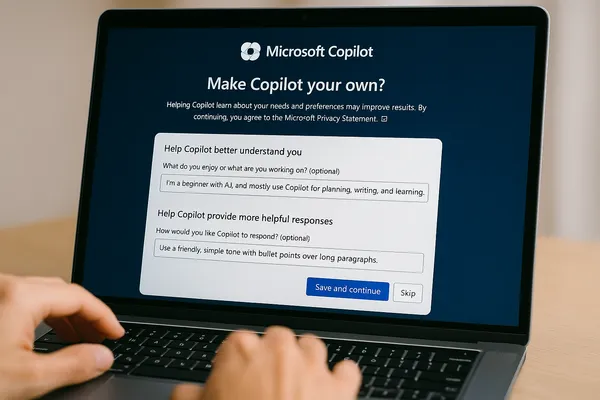
Copilot will start gathering your goals, tone, and preferences. - Tell Copilot About Yourself (Your Role, Goals, and Interests)
This helps Copilot tune explanations to your level and needs.
Examples:
• “I’m new to A.I. and prefer simple explanations.”
• “I mostly use Copilot for writing, summaries, and planning.”
• “I prefer short answers unless I ask for more detail.”
• “I’m using this for home projects, not business.”
Copilot uses this information in every future conversation. - Set Tone & Style Preferences (How You Want Copilot to Respond)
You can train Copilot with instructions such as:
• “Use a friendly, calm tone.”
• “Keep explanations simple and practical.”
• “Use bullet points whenever possible.”
• “Start with a quick summary before giving detail.”
• “Avoid jargon unless I ask for it.”
These work across the web app, mobile app, and Microsoft 365 tools. - Use the Attachment / Paperclip Icon to Teach Copilot Your Style
The paperclip button opens Copilot’s most powerful personalization tools:
• Upload a writing sample so Copilot can match your tone.
• Upload PDFs, Word docs, or spreadsheets—Copilot will analyze, summarize, rewrite, or extract insights.
• Upload images (documents, receipts, instruction manuals, labels).
• Use your phone camera to show Copilot real-world objects or problems.
When Copilot sees your materials, it adjusts to how you work. - If You Use Microsoft 365, Set Up App-Specific Personalization
Inside Microsoft 365, Copilot can adapt to the way you use:
• Word – refine your writing style, tone, formatting, and revision preferences
• Excel – learn how you analyze data, structure tables, or prefer visualizations
• Outlook – match your email voice (friendly, direct, concise)
• PowerPoint – follow your preferred layout, language style, and slide formatting
Example personalization prompt:
“In Word, rewrite my content in my voice: simple, direct, and friendly. Ask for clarification when the instructions are vague.” - Tell Copilot Your Most Common Tasks
This helps it prepare the right templates and suggestions.
Example tasks:
• rewriting emails
• turning notes into clean bullet points
• summarizing long documents
• planning events, meals, or trips
• analyzing spreadsheets
• explaining technical instructions
Once Copilot knows your tasks, it becomes dramatically faster and more accurate. - Create a Default “Starter Prompt” for Consistency
Copy/paste this at the beginning of important chats:
“For this conversation, act as my practical assistant. Use simple explanations, bullet points, and ask clarifying questions when needed. Keep answers short unless I request more detail.”
This keeps Copilot from drifting into overly formal or overly long responses. - Review Copilot Data & Personalization Settings
Go to Settings → Privacy & Security (location varies by device).
Check:
• whether Copilot saves your chat history
• whether your data syncs across devices
• whether apps (like Word/Excel) are allowed to feed context to Copilot
Turning history off increases privacy but reduces personalization. - Test Your Personalization With Real Tasks
Try:
• “Rewrite this email using my tone:” + paste text
• “Summarize this PDF in 5 bullets:” + upload file
• “Create a simple plan based on my preferences above”
If the results don’t feel right, adjust your instructions and try again. - Refine Over Time—Copilot Learns With You
Anytime you think “I wish Copilot would ___,” update your preferences:
• “Add 1–2 examples to explanations.”
• “Avoid overly technical answers.”
• “Start responses with a simple summary.”
This ongoing refinement makes Copilot more personalized than most A.I. tools.
Key Takeaways
• Copilot improves dramatically when you share your goals, tone, and preferences.
• The paperclip icon unlocks powerful uploads that teach Copilot how you work.
• Microsoft 365 integration personalizes Word, Excel, Outlook, and PowerPoint.
• Starter prompts keep behavior consistent across conversations.
• Personalization evolves—adjust your preferences as your needs change.
Join our free newsletter today. Better yet, become a member to gain access to more than 200 valuable prompts and pro tips, engage with the community, and support independent publishers like us!