
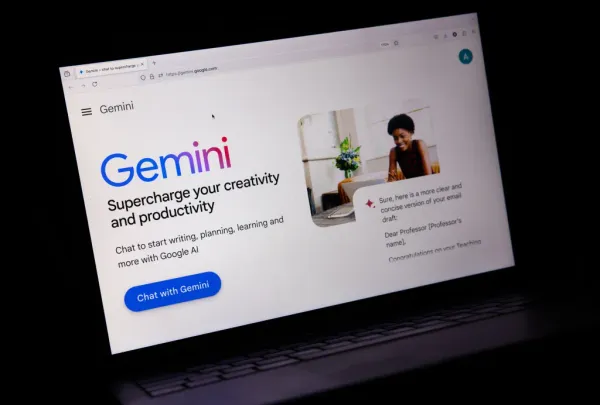
How to Use Google Gemini for Beginners
Google Gemini is one of the easiest A.I. tools to start with—especially if you already use Gmail, Google Search, Chrome, or Android. This guide shows beginners exactly how to use Gemini, what the buttons do, how to write prompts, and how to get great results right away.
What This Is
A clear, step-by-step walkthrough that teaches beginners how to use Google Gemini on web and mobile, how to write prompts, how to use image and file uploads, and how to get practical everyday value from Gemini without any technical background.
How to Use Google Gemini (Step-by-Step)
- Start With a Simple Request
Go to gemini.google.com or open the mobile app, then ask something natural: “Explain this…” or “Help me plan…” or “Summarize this…” Gemini understands plain English—you don’t need any special keywords. - Give Gemini Context So It Knows What You Want
Context dramatically improves the result.
Try prompts like: “Explain this like I’m brand new to investing.”
Or: “Rewrite this message to sound friendly and clear.”
Or: “I’m planning a 4-day trip with kids—give me ideas.”
The more Gemini knows, the better it performs. - Tell Gemini the Format You Want
Structure makes answers instantly more useful. Ask for:
• bullet points
• step-by-step lists
• comparison tables
• short paragraphs
• summaries at specific reading levels
Beginners often skip this—don’t. Format is a superpower. - Use Gemini’s Upload Options (Mobile + Web)
Tap the paperclip / plus icon to open Gemini’s powerful input tools:
• Upload Images – Take a photo of a bill, document, product label, recipe, physical object, or screenshot. Ask Gemini to explain, extract info, or help you understand it.
• Upload PDFs or Files – Gemini can summarize, rewrite, extract data, create action lists, or compare documents.
• Use the Camera – Point your phone at something in real time and ask Gemini what it is or what to do with it (instructions, ingredients, troubleshooting, etc.).
• Paste Text – Long article? Confusing email? Wall of notes? Paste it in and tell Gemini what you want.
These options make Gemini extremely useful for everyday life. - Ask for Improvements and Alternatives
The first answer is just the starting point. Refine it with:
• “Shorter.”
• “More conversational.”
• “Give me three options.”
• “Rewrite for an 8th-grade reading level.”
• “Make this sound more confident.”
Gemini expects follow-ups—they’re part of normal use. - Ask Gemini to Break Down Big Problems
For tasks that feel overwhelming, tell Gemini your goal. It will break it into steps.
Examples:
• “Help me organize my bedroom—give me a 5-step plan.”
• “I want to start eating healthier. Give me a simple weekly plan.”
• “Explain my insurance benefits in simple terms.” - Use Gemini to Learn Faster
Gemini is great at tutoring and teaching. Try:
• “Explain this concept like I’m brand new.”
• “Give me practice questions.”
• “Help me understand this in a simpler way.”
• “Show me beginner mistakes and how to avoid them.” - Let Gemini Suggest What to Ask Next
If you don’t know what to ask, just say:
“What else should I ask to get more out of this?”
Or:
“Give me follow-up prompts related to this topic.”
Gemini will guide the rest of the process for you. - Practice with One Daily Task
Open Gemini once a day to do something small—summaries, lists, messages, plans, explanations.
Tiny reps = fast progress.
Key Takeaways
• Gemini understands plain English—no technical skills needed.
• Adding context makes responses clearer and more accurate.
• The paperclip/plus button lets you upload images, files, and documents.
• Follow-up prompts refine the output until it fits your needs.
• Using Gemini daily for small tasks builds real skill quickly.
Join our free newsletter today. Better yet, become a member to gain access to more than 200 valuable prompts and pro tips, engage with the community, and support independent publishers like us!